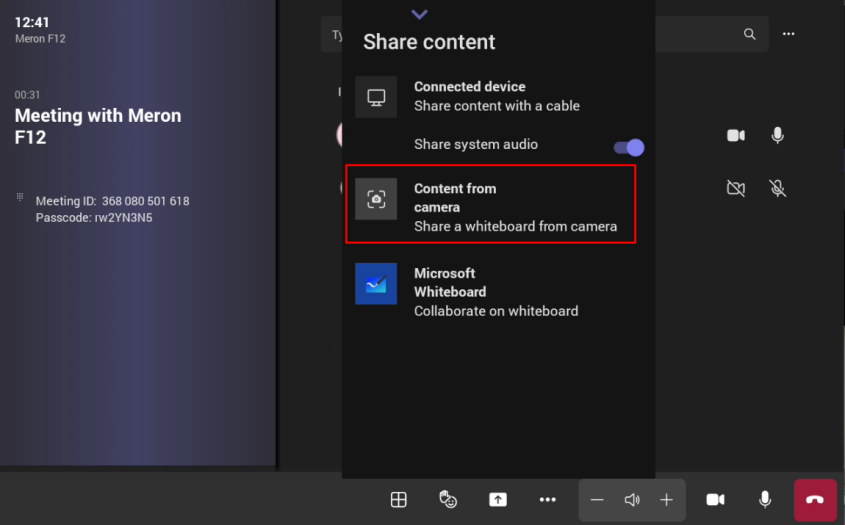
Content Camera Framing on a Whiteboard
For this function to work, the MTRA must be equipped with an RXVCam10 camera.
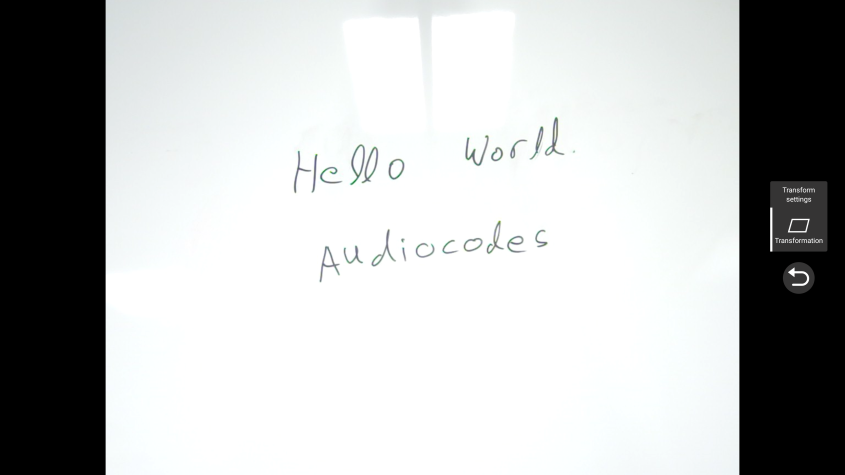
Presenters can share their physical whiteboard with remote participants using the Content Camera feature. To optimize the view, use Transform settings to define and capture the area precisely, isolating the whiteboard and removing unwanted margins beyond its edges.
Before starting, the admin must confirm the RXVCam10-CC is set as the content camera in Teams Admin Settings > Devices:
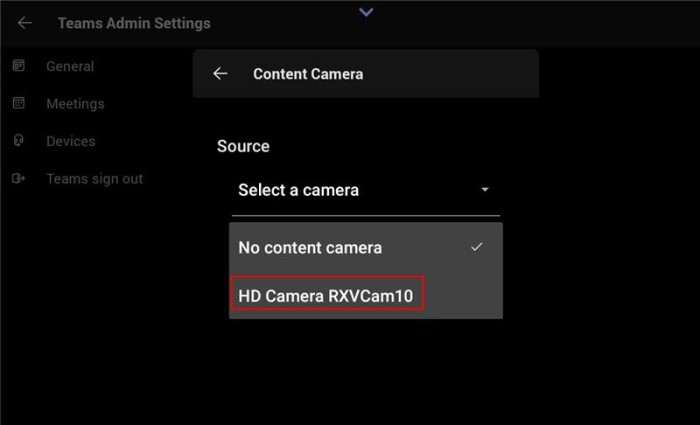
| ➢ | To share content: |
| 1. | If not already logged in, log in to Device Administration (see Logging in to Device Administration). |
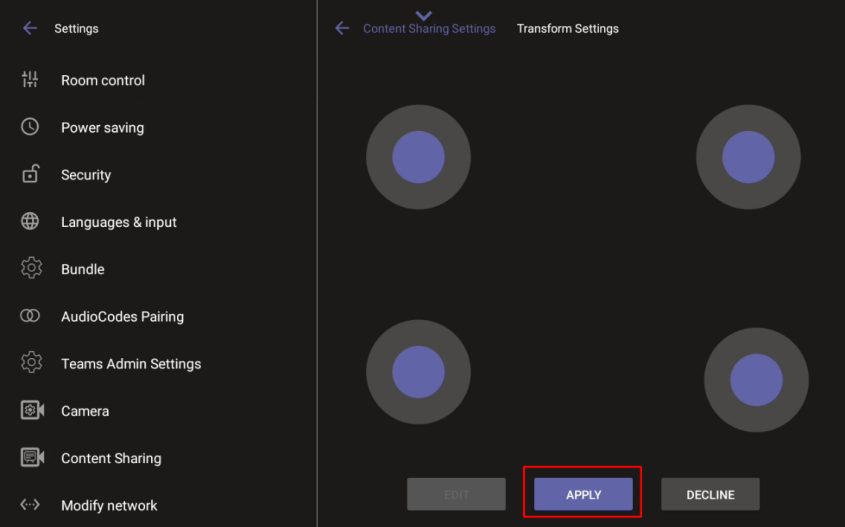
| 2. | Under ‘Device admin settings’, scroll down and tap Content Sharing, then tap Transform settings: |
| 3. | Use the four joysticks on the RX-PAD to adjust the boundaries of the content camera's capture area: |
The admin can view the adjustment on the display:
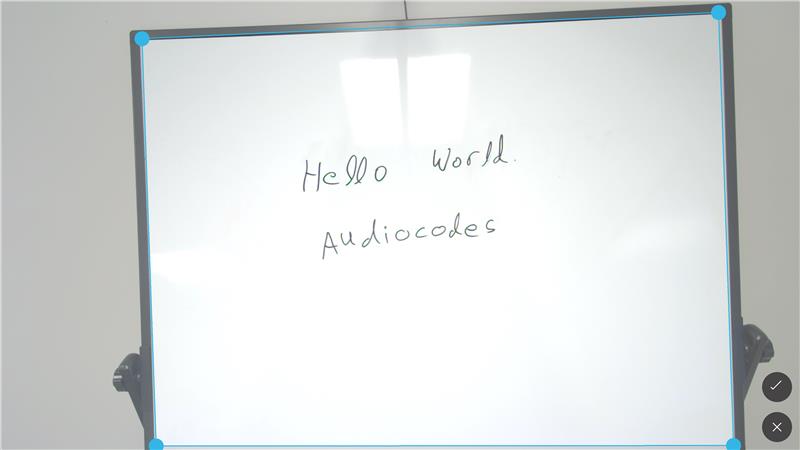
| 4. | When the desired shape is chosen, tap Apply to confirm. The shape can now be cut out and displayed on the screen: |
| 5. | To edit or delete the shape, return to the Transform settings screen. |
| 6. | In the Teams meeting, the user can share content from the connected camera: |